Doodle Magic: Glow Art Drawing
- 4.3
- Rating
- 1.00M
- Installs
- Free
- Price
 Analysis by App-foxy
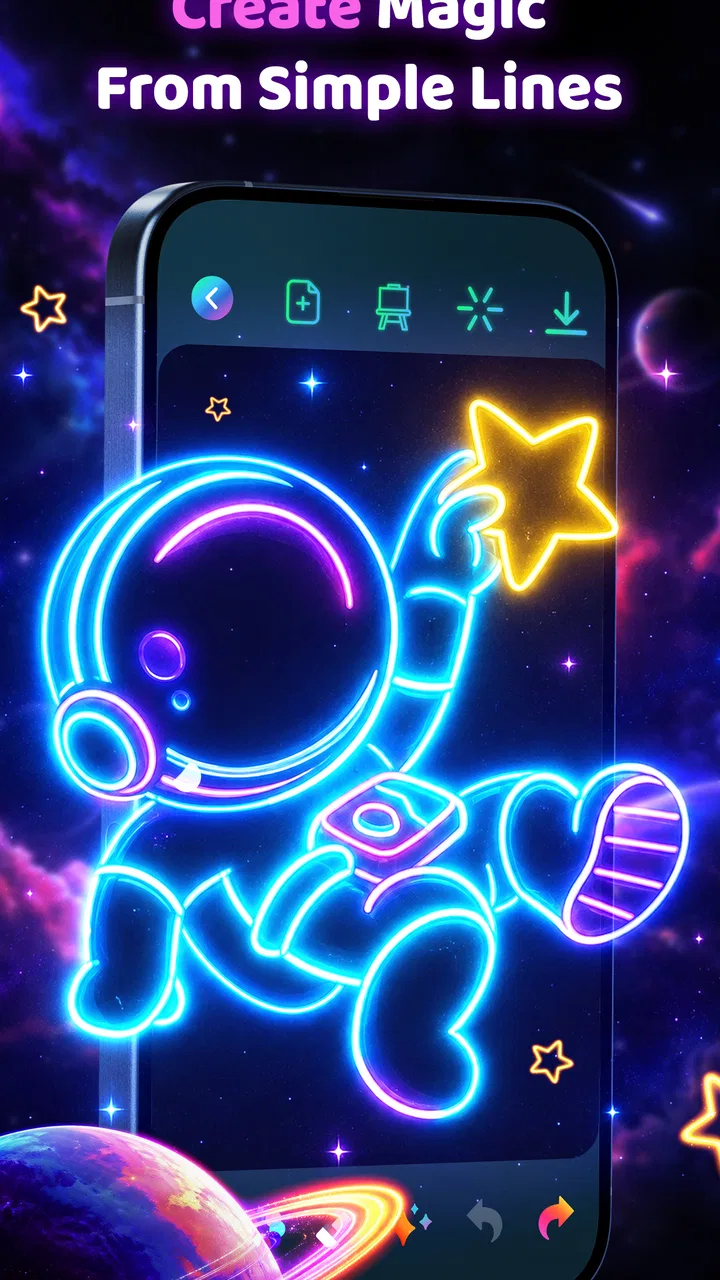
Magic Doodle: Glow Art Drawing is the kind of art and design app I open when I want to make something colorful without committing to a serious drawing session. It focuses on neon-style doodling, so the appeal is immediate: choose a glowing visual style, draw with your finger, and watch a simple line become a bright piece of screen art. I found it much closer to a relaxing sketchbook with visual effects than to a full illustration studio.
That distinction matters before you install it. If you want layers, detailed brush control, precise shape tools, or a workflow built for finished professional artwork, this is not the app I would choose first. If you want a quick creative break, a way to decorate an idea visually, or an easy drawing activity that does not intimidate beginners, it makes a stronger case. My overall impression is that its value comes from reducing the distance between “I want to draw” and actually making something.
What to consider before choosing a neon drawing app
I judge an app like this by a few practical questions. Does it feel enjoyable within the first minute? Can a new user understand the drawing experience without studying a manual? Do the effects make ordinary marks look interesting, or do they get in the way? I also pay attention to whether the app remains useful after the first novelty wears off, because glowing lines are attractive at first but need a flexible enough workflow to support repeated use.
You May Also Like

 Blood Strike: 2.5 Anniversary
Blood Strike’s Loadouts Turn Every Drop Into a Tactical Gamble
A close look at Blood Strike’s custom loadouts: how fast access to signature weapons reshapes its battle royale rhythm, rewards preparation, and narrows the gap between fights.

 Pandora - Music & Podcasts
Pandora’s Music Is Easy to Start, but Harder to Recover
Pandora’s strength is its low-effort path from a seed to a station. Its weak spot is how much confidence it asks you to place in connection, setup, and quiet recovery.

 8 Ball Pool
 Is Built on Rivalries, Rematches, and Routine
A close look at the rivalries, rematches, shared routines, and unanswered safety questions that turn a quick pool match into a persistent mobile community.

 Samsung Music
’s Quiet Strength Is Playing What You Already Own
Its reach comes less from spectacle than from dependable access to a personal library. That simplicity is both the app’s strongest retention engine and its ceiling.

 AccuWeather: Weather Radar
AccuWeather Review: A Quick, Clear Forecast for Everyday Decisions
For everyday plans, the best forecast is the one you can understand quickly. AccuWeather makes rain timing, radar, and local conditions easy to act on, with a few trade-offs.

 Hill Climb Racing
Why Hill Climb Racing Still Turns Crashes Into One More Run
A tiny car, a bumpy hill and one more upgrade: Hill Climb Racing keeps resurfacing because its simple chaos makes every near-miss feel personal.
More From Our News Desk



Magic Doodle is free to install and is rated for Everyone, which makes it easy to recommend as a low-risk creative tool for families and casual users. It includes optional in-app purchases priced from $1.99 to $19.99 per item, so I would treat the free experience as the starting point and check purchase prompts carefully before handing the device to a child. The age rating helps, but it does not replace sensible supervision around spending.
The app comes from CEM SOFTWARE LTD and was released on March 15, 2025. It requires Android 8.0 or later, so compatibility should be straightforward on many older Android phones and tablets, although the experience will naturally depend on the device’s screen size and responsiveness. The current version is 1.1.16, and I would keep the app updated if drawing responsiveness or effect behavior matters to you.
Its public reception is encouraging: it holds a 4.5 average from around 32 thousand ratings and has passed one million installs. Those figures do not tell me whether it is the right fit for every artist, but they do suggest that the simple neon-doodle idea has found a substantial audience. I see it as a focused app rather than an all-purpose art package, and that focus is both its main strength and its main limitation.
The first-use experience and the learning curve
What I like about this format is that it does not demand artistic confidence. A blank digital canvas can make people hesitate, especially when a conventional drawing app presents a long row of brushes, sliders, layers, and technical settings. A glow-focused doodle app changes the expectation. The goal is not perfect realism; it is to create a lively mark quickly.
For a first attempt, I would start with slow loops, stars, simple flowers, lettering, or repeated geometric patterns. These shapes work well with luminous strokes because the effect supplies visual interest even when the underlying drawing is basic. I would not begin by trying to reproduce a detailed portrait. The app is more rewarding when I use it as a playful surface for rhythm, repetition, and bright outlines.
A useful habit is to plan the composition before filling the screen. Neon marks can look impressive individually, but a page becomes harder to read when every corner is equally busy. I get better results by leaving a little breathing room, placing one larger central shape, and using smaller doodles around it. This is a small workflow change, but it separates a deliberate image from a collection of random strokes.
I also recommend treating the first few drawings as experiments rather than finished work. Try a short line, a long curve, a tight spiral, and a pattern made from the same symbol. Notice which movements feel comfortable on the device. Finger drawing is less precise than using a stylus, and the screen can hide part of the mark while your hand is moving. Accepting that limitation makes the app feel more natural.
Where the glowing style works best
The strongest use case is quick visual expression. I can imagine opening it while waiting for an appointment, taking a short break from study, or relaxing before bed. It is also useful when I want to test a visual idea without opening a larger illustration program. A few neon lines can communicate a mood, a symbol, or a rough layout faster than a blank page in a traditional art app.
It can work especially well for users who enjoy decorative patterns. Mandalas, borders, constellations, abstract waves, and simple icons gain energy from luminous treatment. The style also suits digital greeting images, playful backgrounds, and small pieces intended to be shown on a phone screen. I would not confuse that with print-ready design, but for screen-based creativity the visual identity is clear.
One non-obvious advantage is that the effect can make practice feel less judgmental. When I draw with an ordinary pencil tool, uneven lines are obvious. A bright visual treatment shifts attention toward the overall rhythm and color. That can encourage beginners to keep experimenting instead of erasing every imperfect stroke. For children or adults who say they are “not good at drawing,” this psychological difference may be more important than technical precision.
Another useful approach is to use the app for visual brainstorming. I might sketch a logo-like symbol, a room decoration idea, a fantasy creature outline, or a pattern for a later project. The point is not to finish the design inside the app. It is to capture an idea while it is fresh, using an interface that makes rough marks feel presentable enough to review.
Practical ways to get more from each drawing
I found that pacing matters. Fast, sharp movements can create energetic marks, while slower movements are better for lettering and clean outlines. If a drawing feels messy, I would not immediately add more effects or more detail. I would first simplify the composition, repeat fewer shapes, and give the main subject more empty space.
Layering by visual density is another helpful technique. Instead of trying to make every stroke equally bright or important, use a dominant outline and quieter supporting marks where possible. Even in a simple doodle environment, contrast comes from restraint. A large glowing circle surrounded by small scattered accents usually reads more clearly than a fully packed canvas.
For lettering, I would use short words and block-style characters rather than delicate handwriting. Finger input makes narrow loops and tiny details difficult, while bold letters benefit from the luminous treatment. If the message is important, sketch the spacing mentally first and leave room between words. This is one area where a dedicated typography or design app will remain better, but Magic Doodle can still produce a fun informal result.
I would also think about the final viewing context. A drawing that looks balanced on a bright phone may feel different in a dark room or on a larger tablet. Before considering a piece finished, I would inspect it at a comfortable brightness and look for areas where the glow overwhelms the shape. This is not a professional color-management workflow, but it prevents the most common problem with neon artwork: visual noise.
Where Magic Doodle wins, and where another category fits better
Magic Doodle: Glow Art Drawing wins when speed, simplicity, and atmosphere matter more than technical control. Compared with a conventional sketching app, it gives the drawing a distinctive visual direction from the start. Compared with a general design editor, it asks much less of the user. I do not have to begin by deciding which professional toolset I need; I can simply make a mark and see an entertaining result.
That makes it a good choice for casual creators, younger users, beginners, and anyone who enjoys decorative digital art. It is also a sensible secondary app for experienced artists who already have a serious drawing tool but want something lighter for warm-ups. I would use it when I want the act of drawing to feel playful rather than productive.
Traditional sketching apps are a better fit when the goal is anatomy practice, detailed shading, precise line cleanup, or a multi-stage illustration. Those apps generally make more sense for users who need control over the construction of an image. I would choose one of them for a portfolio piece, a technical concept, or any project where the original stroke must remain editable and carefully organized.
Template-driven design apps may suit users who want polished social graphics, posters, or ready-made layouts rather than freehand drawing. They are often more efficient when the challenge is arranging text and images. Magic Doodle is the better choice when the personal mark is the point, but it is not the fastest route to a conventional promotional graphic.
Coloring apps can be preferable for someone who wants calm, guided creativity without having to invent a composition. Magic Doodle gives me more freedom, but that freedom also means I must decide what to draw. A child who enjoys filling predefined pictures may find a coloring experience more satisfying, while a user who wants to make spontaneous patterns will likely prefer the open canvas here.
There is also a difference between novelty and depth. The glow effect provides a strong first impression, but users who need a broad brush library, advanced editing, or a carefully managed production workflow may outgrow the app. I would skip it if my main requirement is precision. I would also skip it if I dislike visual effects and want a neutral pencil-and-paper simulation.
Everyday scenario: a short creative break
Imagine I have ten minutes between tasks and want to step away from a crowded schedule. Opening a complex design program would take too much mental energy, while scrolling through social media would not leave me with anything I made. In Magic Doodle, I can choose a small idea, such as a night sky, a repeating leaf pattern, or a short motivational word, and spend the break building it from simple marks.
The useful part is not whether the result deserves to be framed. The app gives the break a beginning and an end: start with a blank surface, build a recognizable pattern, then stop before overworking it. I can imagine using that routine as a low-pressure way to reset attention. The same approach could work for a parent and child sharing a tablet, provided purchases are managed and the child understands that the aim is experimentation rather than perfection.
For a student, the app could also serve as a visual note-making outlet. A glowing symbol might help mark a personal idea, a mood, or a memorable concept. I would not use it for dense academic diagrams, because handwriting accuracy and information structure matter more there. But for a creative summary or a visual break from text-heavy work, it can be a pleasant change of pace.
The trade-off between free access and optional spending
The free price makes trying the app easy, which is important for a focused creative tool. I can test whether the drawing feel suits me before deciding whether it deserves space on my device. The optional purchases introduce a different decision: frequent users may find extra paid content or capabilities worthwhile, while occasional users may prefer to stay within the free experience.
I would approach the purchase system with a clear personal limit. If I only want a few minutes of doodling now and then, paying for extras may not improve my experience enough to justify the cost. If the app becomes part of a regular creative routine, an individual purchase could make more sense, but I would still judge it by how often I actually draw rather than by the excitement of the first session.
This is also where the cost of switching matters. Trying Magic Doodle costs little in money, but switching away later can cost time if I create a habit around a particular visual style and then need to recreate the work elsewhere. For that reason, I would treat important artwork as a draft unless I know the app’s export and editing workflow meets my needs. Casual doodles are a perfect match; irreplaceable design work deserves a tool selected for long-term control.
Device fit, family use, and expectations
Android 8.0 support gives the app a reasonably broad starting point, but I would still consider the physical device. A larger tablet can make sweeping patterns more comfortable, while a small phone may be better for quick sketches and less suitable for tiny lettering. Screen responsiveness matters too: if the device registers finger movement inconsistently, no visual effect can fully hide the frustration.
The Everyone rating makes the app approachable for a wide audience, but “approachable” does not mean every child will use it independently in the same way. I would show a younger user how to begin, set expectations about optional purchases, and decide whether sharing the finished drawing is appropriate. The app’s simple concept is family-friendly in spirit, yet device settings and supervision remain part of responsible use.
One limitation I would keep in mind is that neon art can encourage endless tweaking. Because every added line looks vivid, it is easy to keep decorating after the composition has already reached its best point. My practical rule is to pause after the main subject is clear, view the whole image, and remove the urge to fill every empty area. Restraint is the difference between a glowing design and a bright tangle.
My recommendation after weighing the alternatives
I recommend Magic Doodle to anyone who wants an uncomplicated, visually distinctive way to draw on Android. It is particularly suited to beginners, casual doodlers, families looking for an easy creative activity, and experienced artists who want a playful side tool. The combination of a free entry point, an Everyone rating, and a focused neon identity makes it easy to try without treating it like a commitment to a full art system.
I would not make it my main recommendation for professional illustration, detailed digital painting, typography, or projects that depend on advanced editing control. In those situations, a conventional drawing or design app is the more sensible investment. The same applies to users who prefer realistic pencil behavior or who find glow effects distracting rather than motivating.
For me, the deciding question is simple: do I want to make a precise image, or do I want to enjoy making a bright one? When the answer is the second, this app gets the balance right. Its best quality is not that it turns every user into an artist; it makes starting feel easy and gives basic marks enough personality to keep the session enjoyable.
After considering its audience, optional purchases, device requirements, and the alternatives available, I see it as a focused recommendation rather than a universal one. Install it if you want quick neon doodles, relaxed pattern-making, or a low-pressure creative break. Skip it in favor of a fuller art workspace if control, editability, and professional precision are your priorities. For the right user, the strongest reason to choose it is the immediate reward of drawing something lively without a steep learning curve.
FAQs for Doodle Magic: Glow Art Drawing
01What is Magic Doodle: Glow Art Drawing and how does it work?
Magic Doodle: Glow Art Drawing is a creative app designed for users of all ages to explore their artistic skills. It allows you to draw with a variety of glow effects, making your artwork stand out with vibrant colors and dynamic patterns. The app provides a range of tools and templates to help beginners and experienced artists alike to create stunning glow art easily.
02Is Magic Doodle suitable for children, and does it include any age restrictions?
Yes, Magic Doodle is suitable for children and is designed to be family-friendly. The intuitive interface and fun glow effects make it engaging for younger users. However, parental guidance is recommended to ensure a safe and supportive drawing environment, especially for very young children, as the app might include in-app purchases.
03Does Magic Doodle offer any in-app purchases or subscriptions?
Magic Doodle does offer in-app purchases for additional features, templates, and tools that can enhance your drawing experience. While the basic version is free, purchasing these extras can unlock more advanced effects and options. There are no mandatory subscriptions, so you can choose what to purchase based on your needs.
04Can I share my artwork created in Magic Doodle on social media platforms?
Yes, Magic Doodle allows you to easily share your creations on various social media platforms directly through the app. You can showcase your glow art to friends and followers with just a few taps. The app supports sharing to popular networks like Instagram, Facebook, and Twitter, among others.
05Is Magic Doodle available on both Android and iOS devices?
Magic Doodle is available for download on both Android and iOS devices. You can find it on the Google Play Store for Android users and the Apple App Store for iOS users. Ensure your device meets the minimum system requirements for a smooth and enjoyable drawing experience.
Pros
- Intuitive interface for easy navigation.
- Wide variety of brushes and colors.
- Supports layers for complex artwork.
- Offline mode for uninterrupted creativity.
- Regular updates with new features.
Cons
- Ads can be intrusive at times.
- Limited export options for artwork.
- Some features require in-app purchases.
- Occasional performance lags on older devices.
- No direct social media sharing integration.

Doodle Magic: Glow Art Drawing
Gallery